> ## Documentation Index
> Fetch the complete documentation index at: https://guide.rolodexcrm.com/llms.txt
> Use this file to discover all available pages before exploring further.
# Consolidate your contacts
> Import contacts into Rolodex from LinkedIn, Gmail, Outlook, your phone, a CSV file, Dex, or business card scan. Step-by-step guide for every import method.
Discover how Rolodex can help you consolidate your contacts from multiple platforms with this helpful guide. Say goodbye to scattered contacts and hello to unified organization!
Begin by choosing the platforms from which you’d like to import your contacts.
Rolodex can seamlessly integrate with LinkedIn. After connecting your LinkedIn account:
Your LinkedIn connections will seamlessly integrate with Rolodex, staying consistently updated. Rolodex automatically refreshes your contacts’ titles, profile pictures, and more, ensuring everything stays current.
You’ll receive notifications whenever your LinkedIn connections update their titles—a useful signal for when to reach out.
LinkedIn sync is set up from the Rolodex mobile app.
Download the Rolodex mobile app for your device:
iOS users, download the Rolodex mobile app from the App Store.
Android users, download the Rolodex mobile app from Google Play.
New to Rolodex? First sign up and create a workspace in the [web app](https://rolodexcrm.com/auth/sign-in) before connecting LinkedIn.
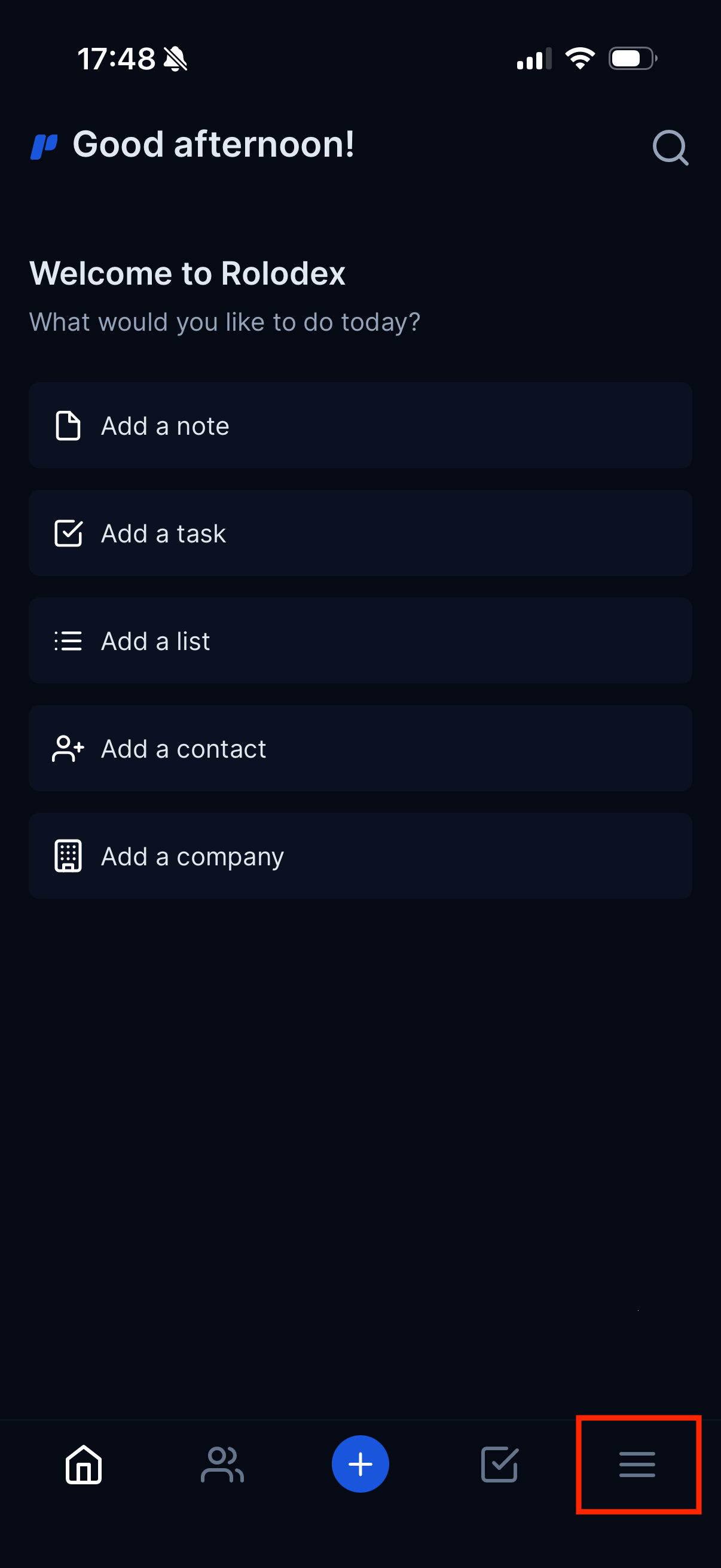
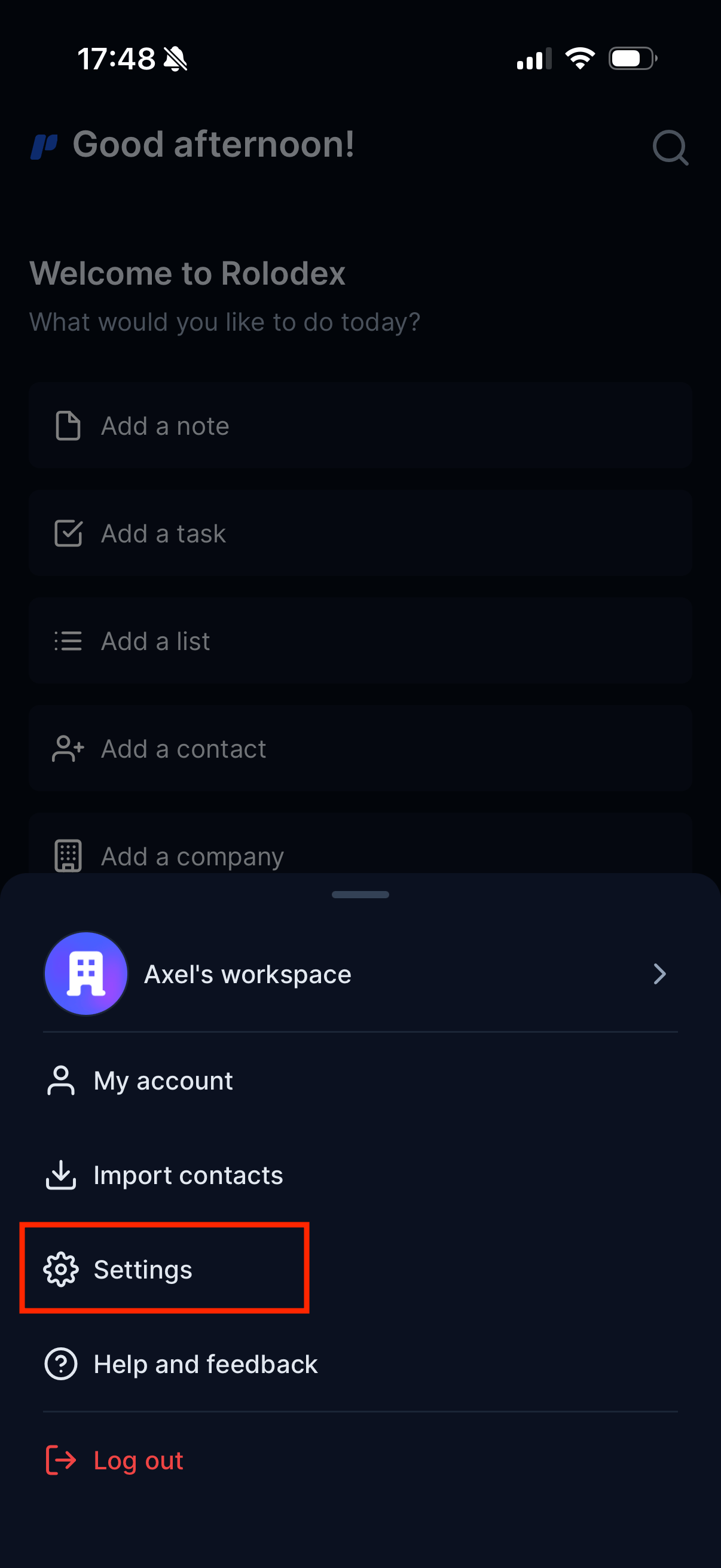
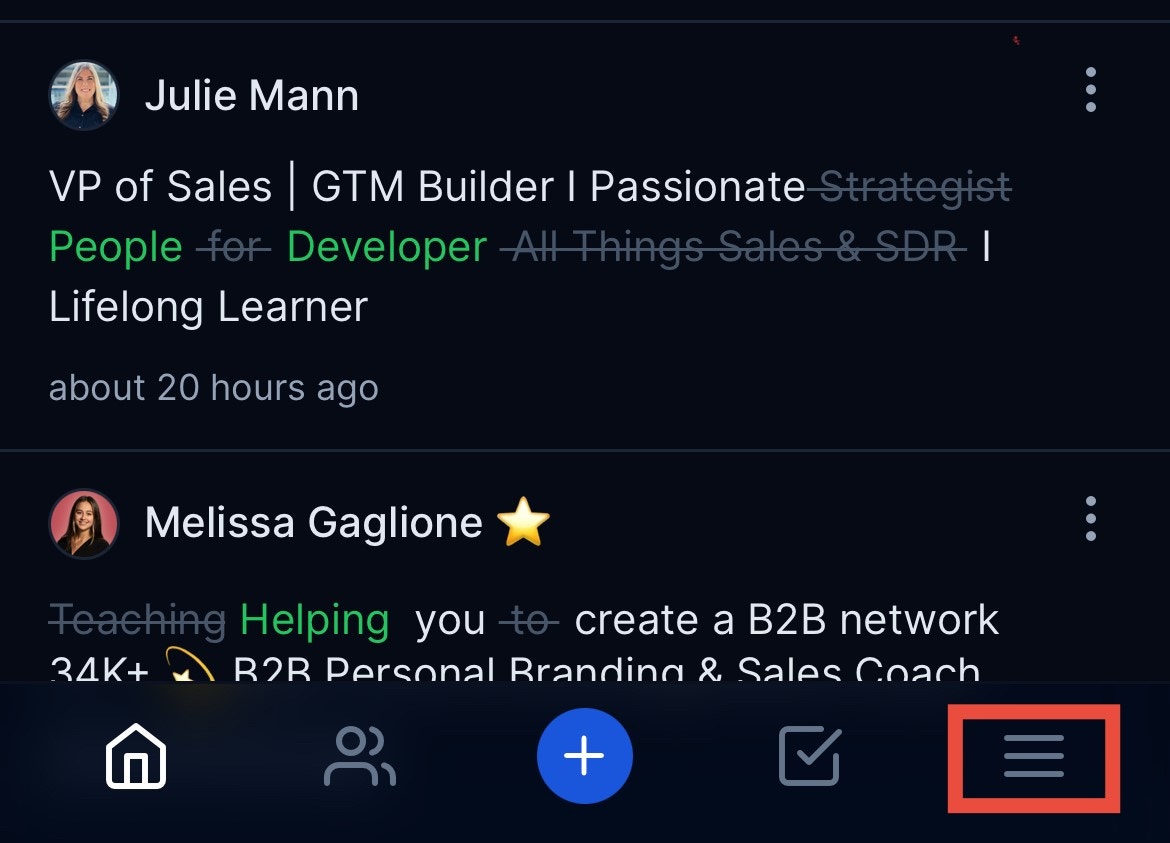
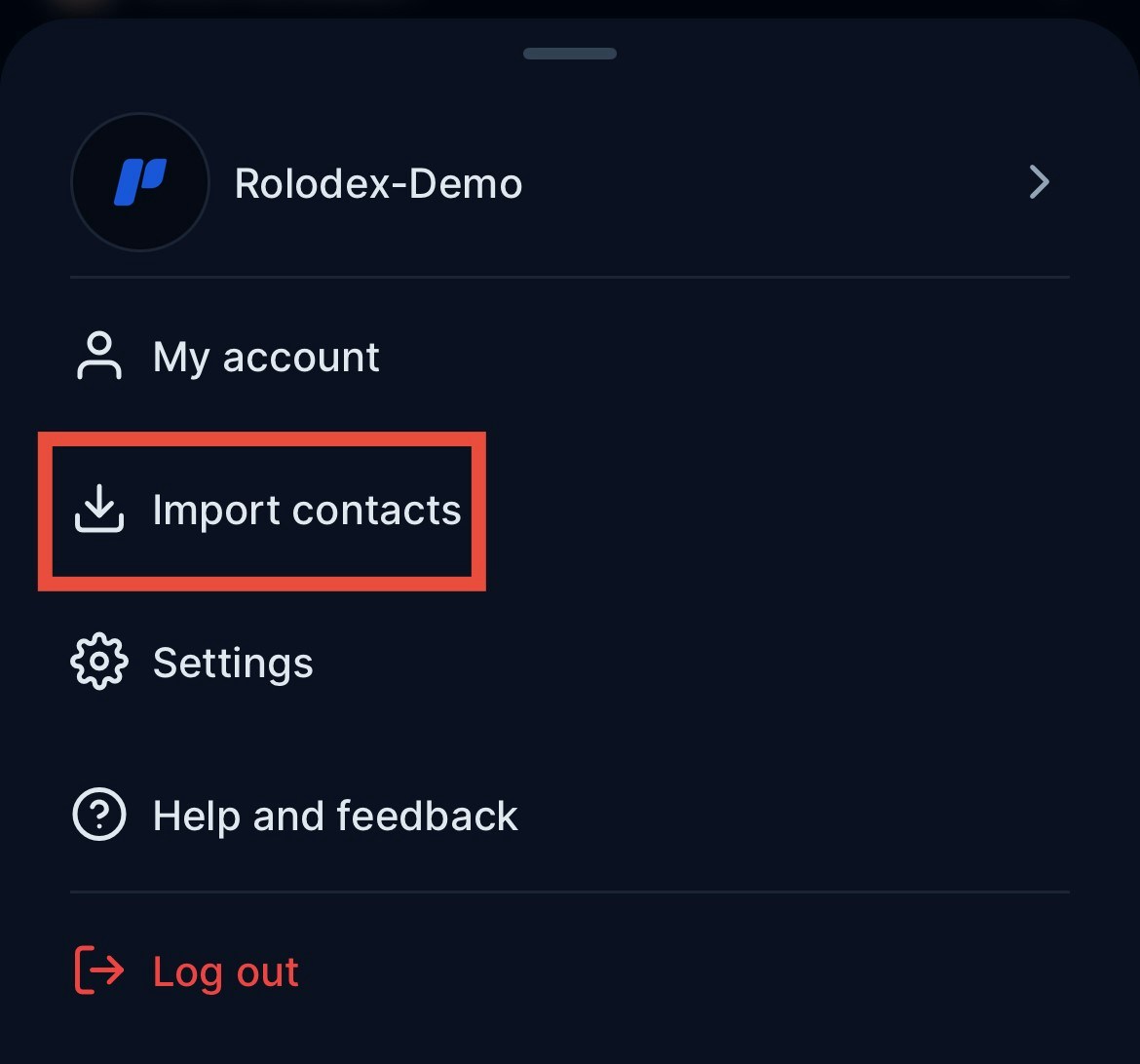
In the Rolodex mobile app, open the menu and tap **Settings**.
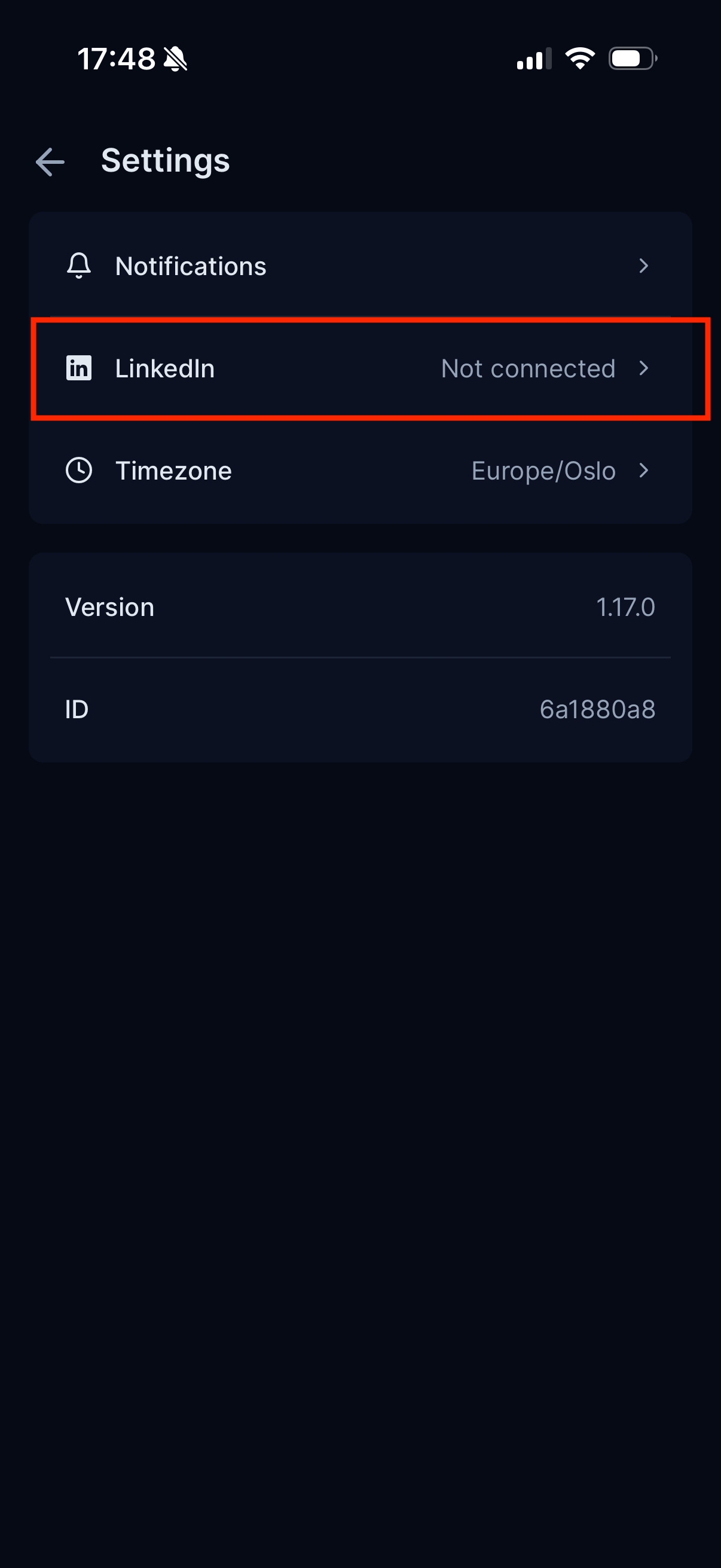
Tap **LinkedIn**. This opens LinkedIn in a new window.
Follow the steps in the LinkedIn app or web browser to log in to your LinkedIn account. Once you're logged in, your Rolodex will be connected.
After setting up LinkedIn Sync, the following data will be synced every 3-5 days:
* Title
* Bio
* Work experience
* Education history
* Location
* Company
Changes in your connections’ profiles will be synced every 3-5 days.
Looking to import a contact you’ve recently exchanged emails with? You can import your contacts from Gmail and Outlook!
Rolodex’s integration with your email accounts allows you to view relevant email threads, update the last interaction, and provide a complete picture of your communications with every contact.
[How to connect your Gmail account?](/Gmailsync)
[How to connect your Outlook account?](/Microsoftsync)
You can quickly add contacts to your Rolodex workspace by importing them directly from your phonebook using the mobile app. When you start the import, you’ll have the option to bring in all your contacts or handpick the ones you’d like to include.
## How to Import Phone Contacts
Importing contacts from your phonebook is only available through the Rolodex mobile app. Make sure you have the app installed to access this feature.
Give Rolodex access to either all of your contacts or select which contacts it should have access to.
If you want to change which contacts Rolodex has access to at a later stage, you have to permit those accesses in your phone settings.
All relevant data stored on your phone contact should be imported:
* Email addresses
* Phone numbers
* Name
* Job title
* Company
* Birthday
* Contact image/photo
* Social media profiles
* Website URLs
* Physical addresses
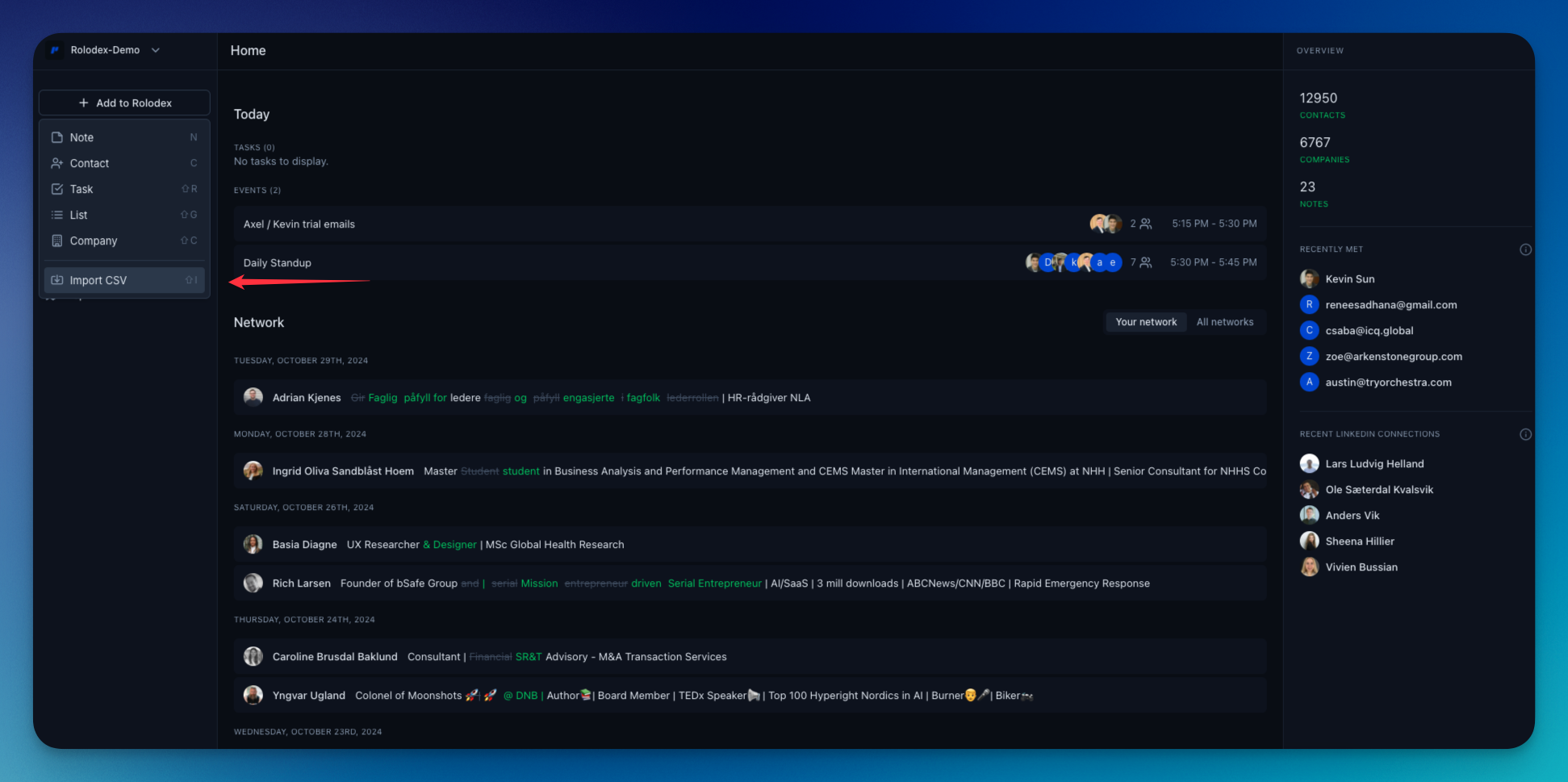
Whether you’re bringing contacts from Dex, Notion, Airtable, or another CRM, you can also import contacts as a .CSV file.
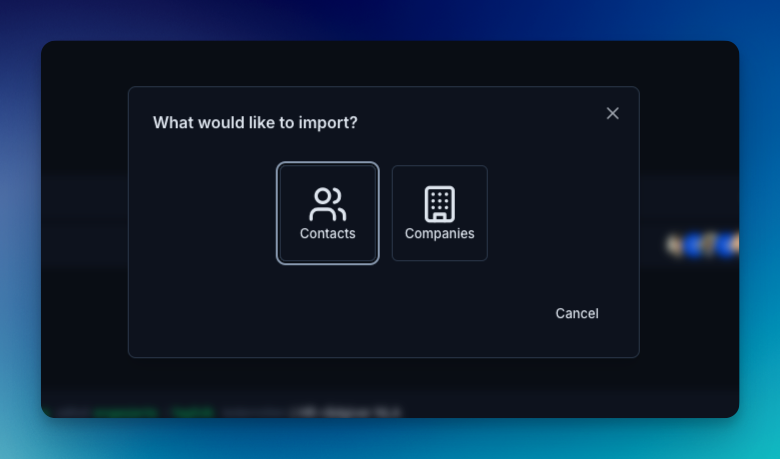
The button can be found under "Add to Rolodex" in the top left corner of the home page.
Let Rolodex know if you are uploading more contacts or companies.
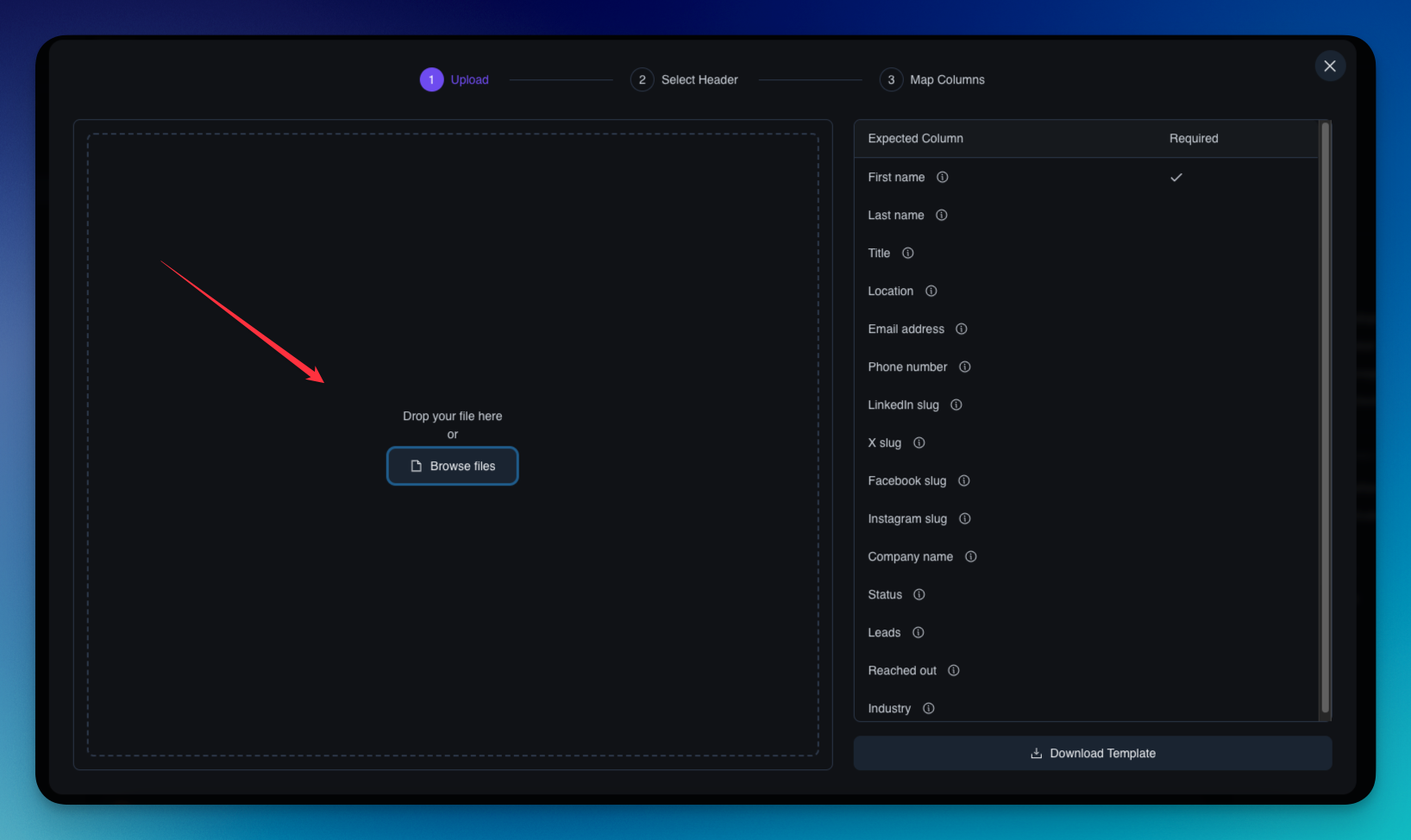
Upload from your device or drop the file directly.
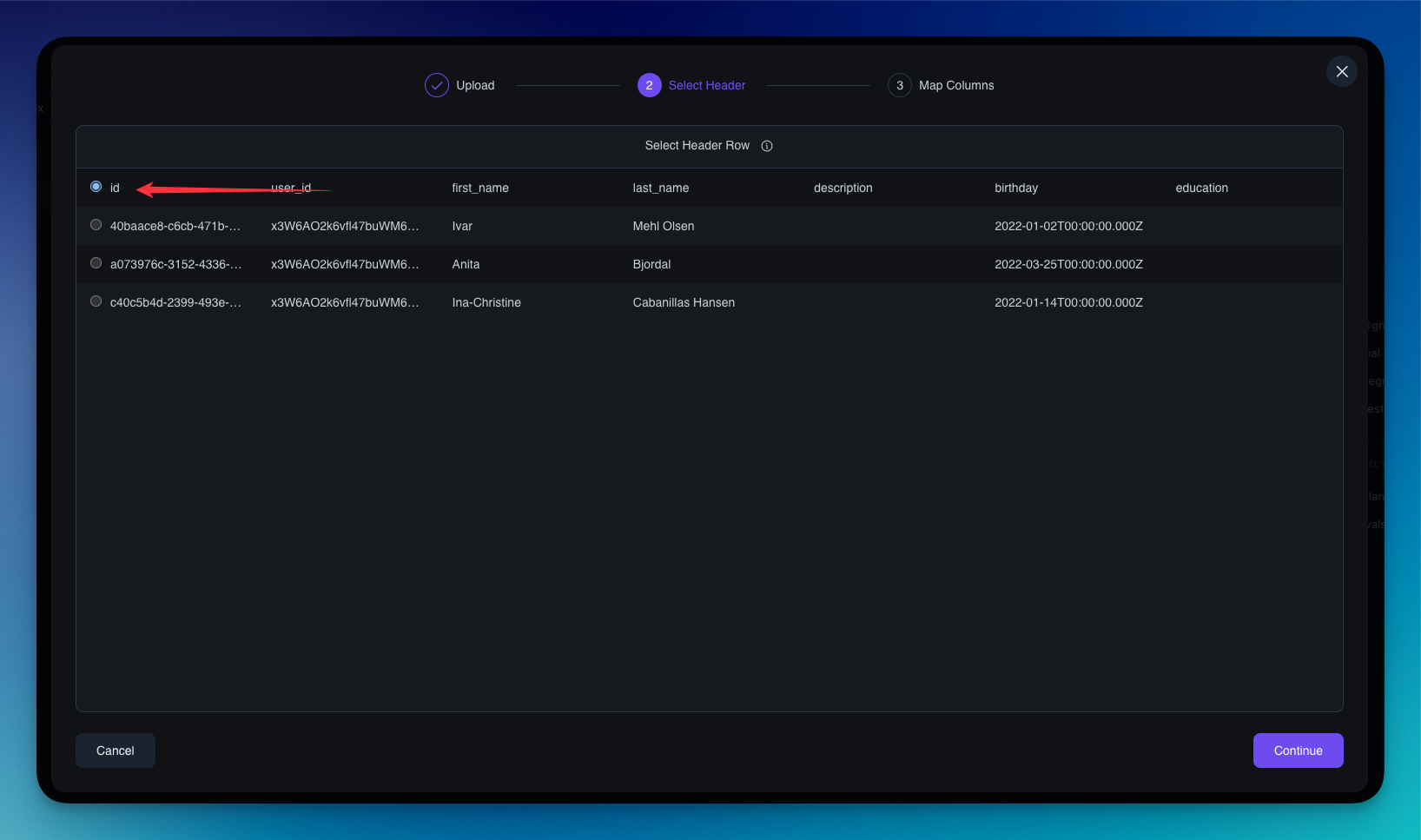
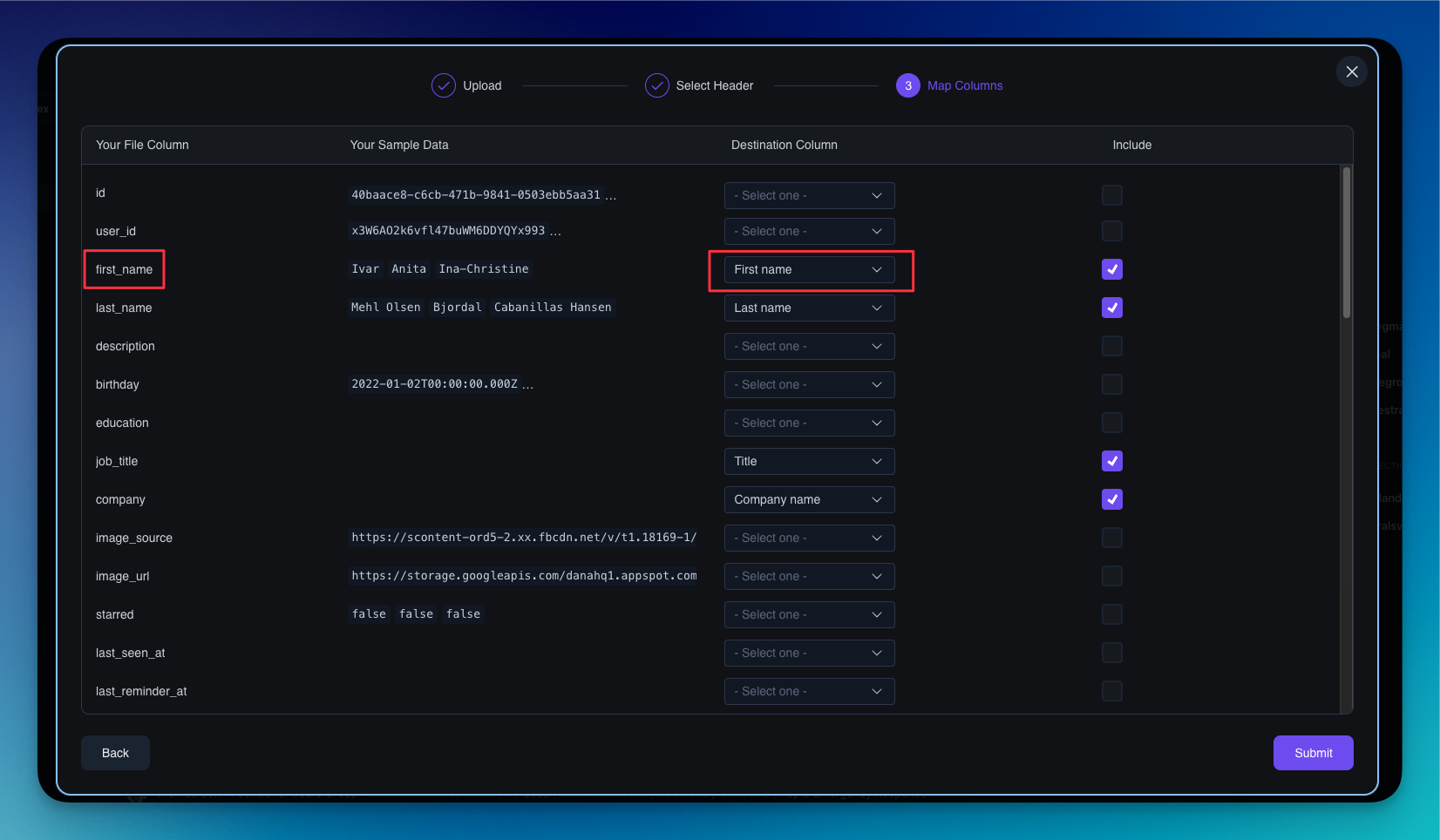
Map a **Company Name** column and Rolodex will automatically link each contact to that company, creating the company if it doesn't already exist.
Rolodex will then add your contacts or companies to your workspace.
**Re-importing won't create duplicates.** If a row matches an existing contact (by email, then LinkedIn, then exact name), Rolodex updates that contact instead of creating a new one — filling in missing fields and adding any new emails or phone numbers without duplicating existing ones.
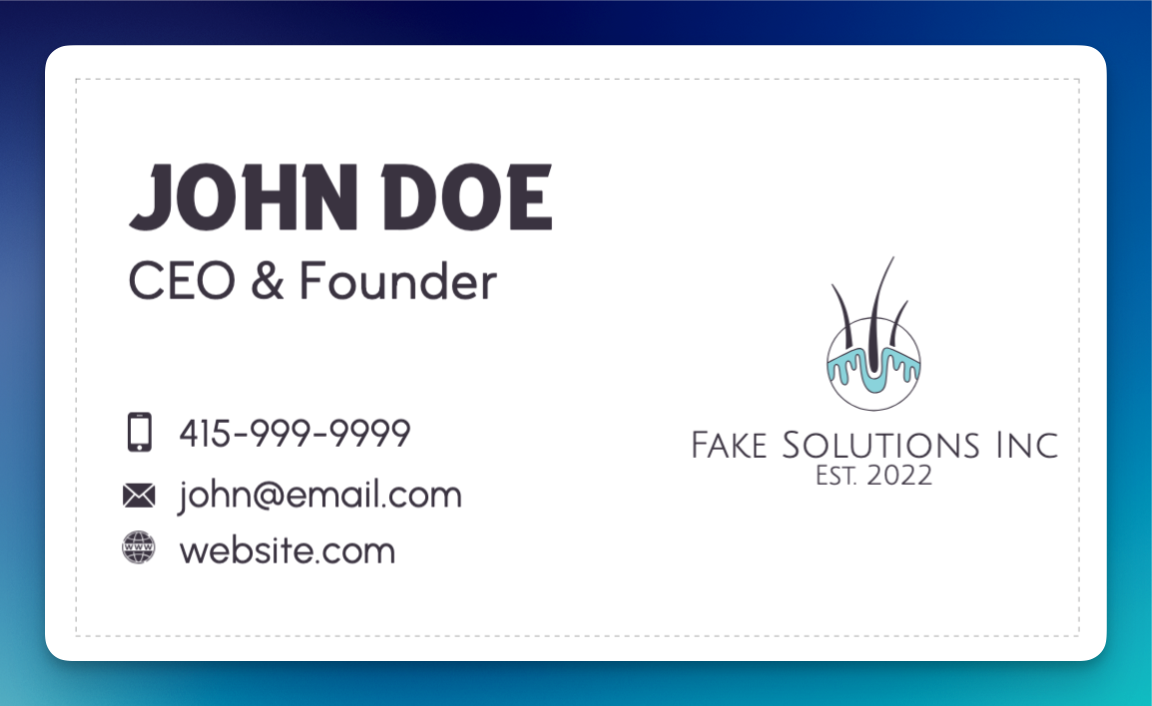
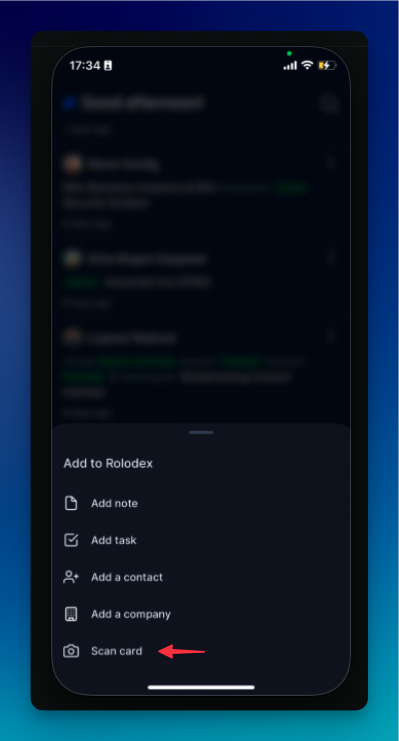
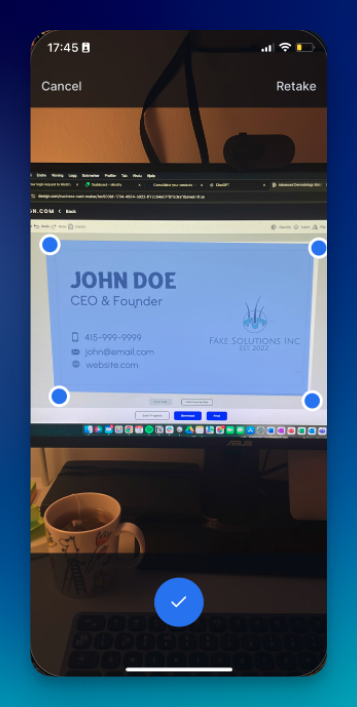
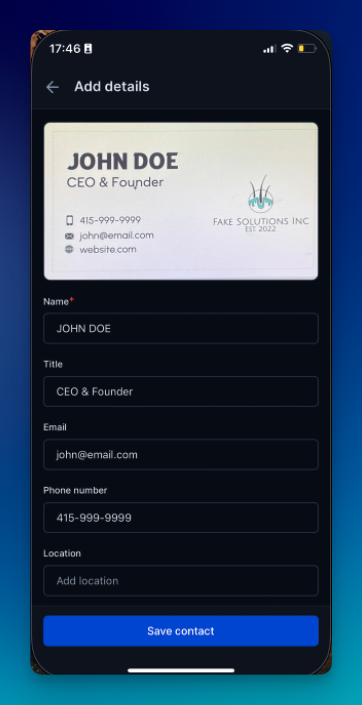
Whether from a networking event or your decades-old rolodex, business cards still are a common way to exchange contact information. Rolodex makes it seamless to work with (and digitize) business cards.
The Rolodex Mobile App allows you to scan cards and add their information automatically to your team's workspace.
Bringing your network into Rolodex just got easier. With our new Dex integration, you can now seamlessly import your contacts—and all their associated data—directly from Dex into your Rolodex workspace.
This integration is perfect for Dex users who want to take the next step in building a shared relationship workspace with their team. Whether you've built out detailed notes, contact timelines, or relationship histories in Dex, you can now carry all that work over with just a few clicks. Your personal network doesn’t have to stay siloed—Rolodex gives you the ability to overlay your individual connections with those of your team, creating a powerful, unified view of who knows who.
## How to import from Dex to Rolodex
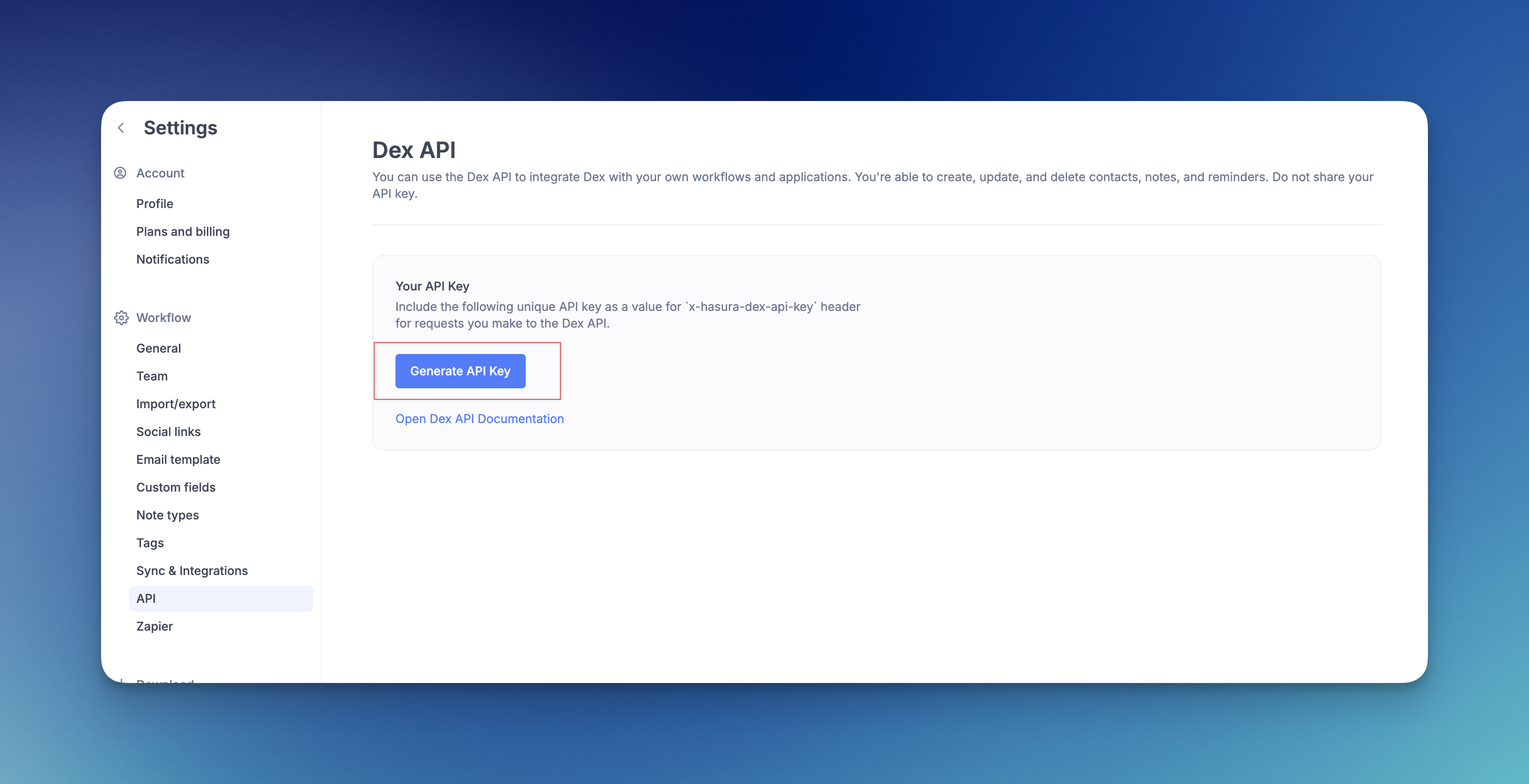
Generate a API key for your Dex account from the [API page](https://getdex.com/appv3/settings/api) in settings. Copy this to your clipboard.
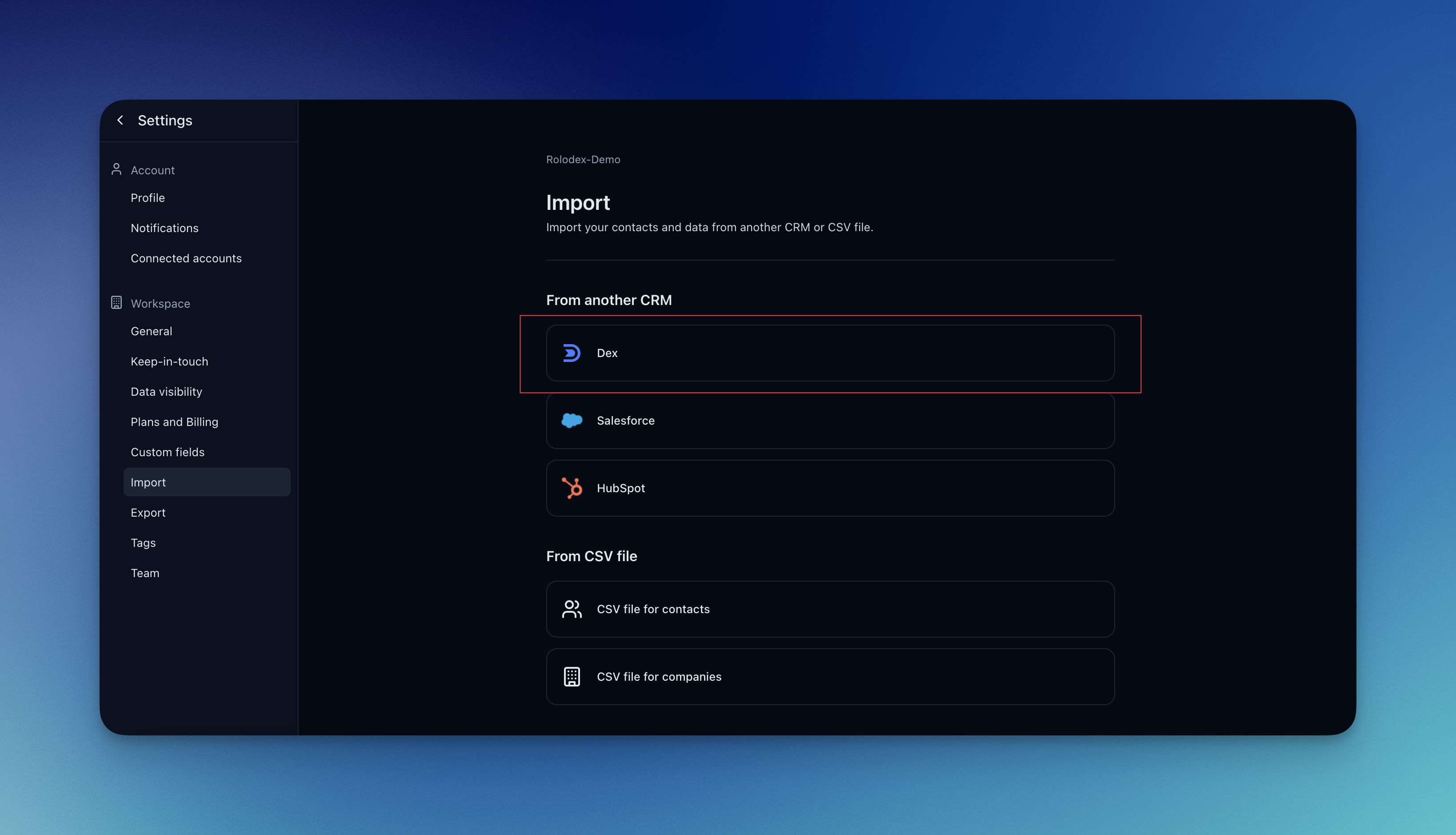
In Rolodex, go to settings and access the [Import page](https://rolodexcrm.com/app/rolodex/settings/import).
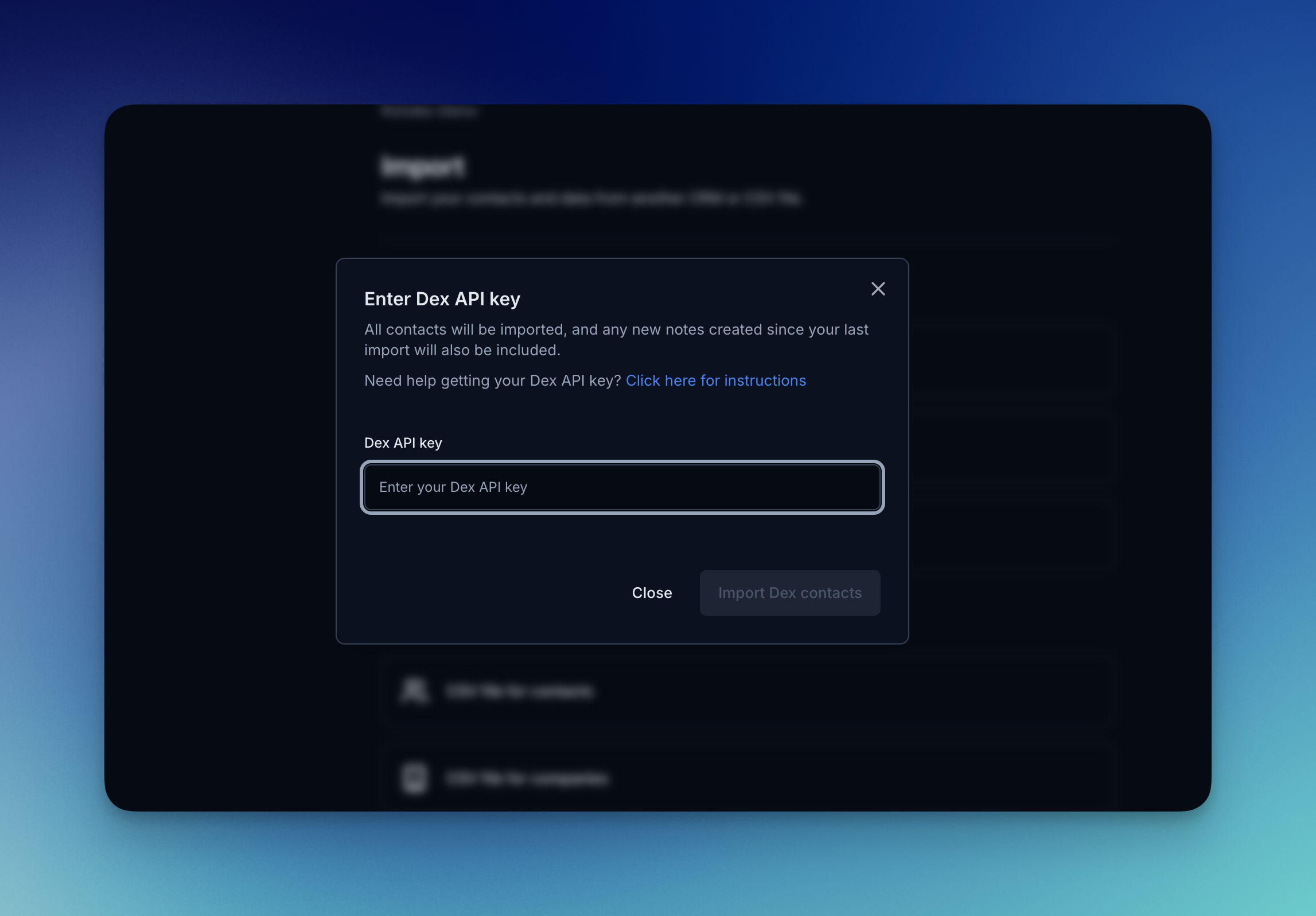
After clicking to import from Dex, a new modal will show where you can paste your unique Dex account API key.
Click on "Import Dex Contacts" to start the import of contacts from your Dex account into your Rolodex workspace.
Do not share your API key!
Rolodex has an ‘Enhance’ feature that will automatically update your contacts by pulling the following information from their LinkedIn profile:
* LinkedIn Bio
* Experience
* Education
* Location
* Profile Photo
* Title
This feature doesn't work if your contact's LinkedIn profile is set to private.
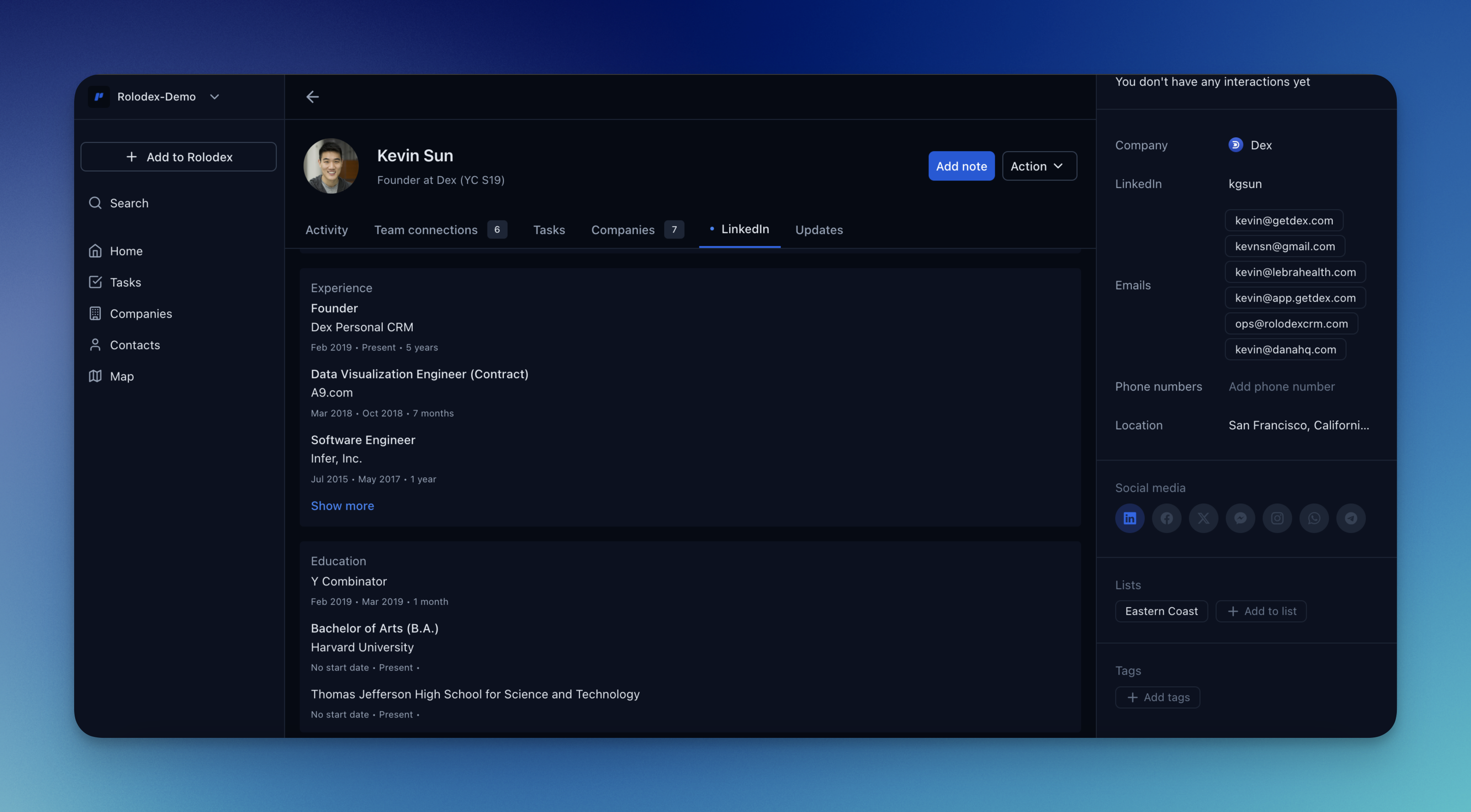
This feature activates after saving the URL of the contact's LinkedIn profile. With the LinkedIn extension, you can easily add a contact directly from LinkedIn. All current contacts will be automatically imported, and new LinkedIn connections will be added to Rolodex automatically.
## Cleaning up duplicates with Merge & Fix
However you bring contacts in, the **Merge & Fix** page finds duplicate contacts and lets you combine them. You can merge every duplicate at once with **Merge all**, or review and merge duplicate groups one at a time.
Use the **list filter** at the top of the Merge & Fix → Contacts page (default **All lists**) to scope duplicate detection to a single list. Select a list and **Merge all** will only act on duplicates within that list — handy for cleaning up a specific list without touching the rest of your database.
 Give Rolodex access to either all of your contacts or select which contacts it should have access to.