> ## Documentation Index
> Fetch the complete documentation index at: https://guide.rolodexcrm.com/llms.txt
> Use this file to discover all available pages before exploring further.
# Delete a Workspace
> Permanently delete a Rolodex workspace and all of its data from workspace settings. A step-by-step guide to the self-serve deletion flow, who can run it, and what gets removed.
Workspace admins can delete a Rolodex workspace themselves, straight from workspace settings—no need to contact support.
Deleting a workspace is permanent and immediate. Every contact, company, note, task, and setting in the workspace is removed for **all members**, not just for you. There is no trash, no recovery window, and no way to undo it.
## Before you delete
* **Only admins can do this.** The Danger zone is hidden for members who aren't workspace admins. If you don't see it, ask an admin to run the deletion.
* **Export anything you want to keep.** Head to **Settings → Export** first and pull down your contacts and companies. Once the workspace is gone, so is the data.
* **Billing doesn't block deletion.** An active subscription or trial won't stop you—you can delete the workspace at any time.
## How to delete a workspace
Click your workspace name at the top of the left sidebar, then select **Settings**.
Settings opens on your personal **Profile** page. In the settings sidebar, find the **Workspace** section and click **General**.
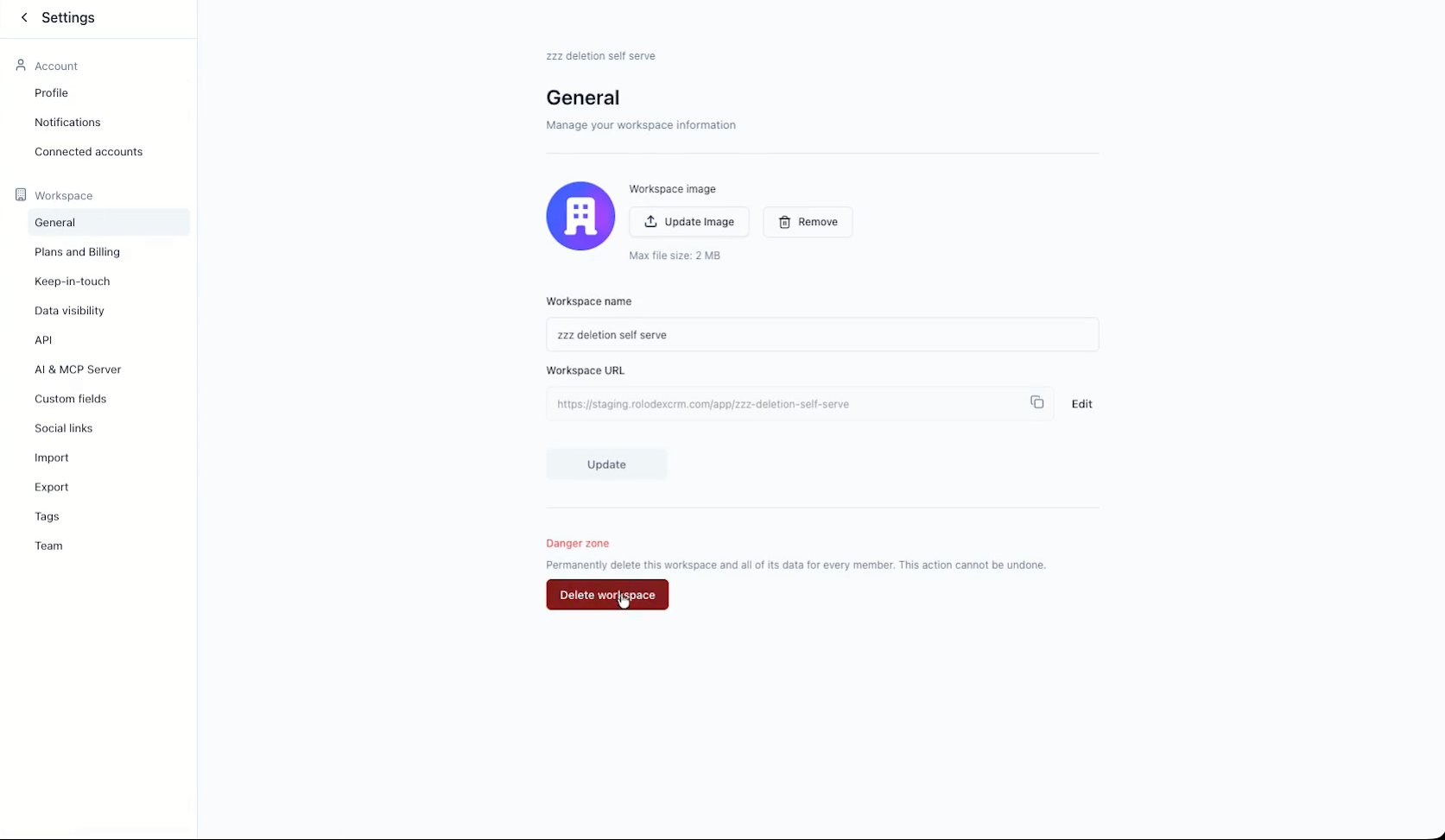
At the bottom of the General page, below the workspace name and URL, you'll find the **Danger zone** and a red **Delete workspace** button.
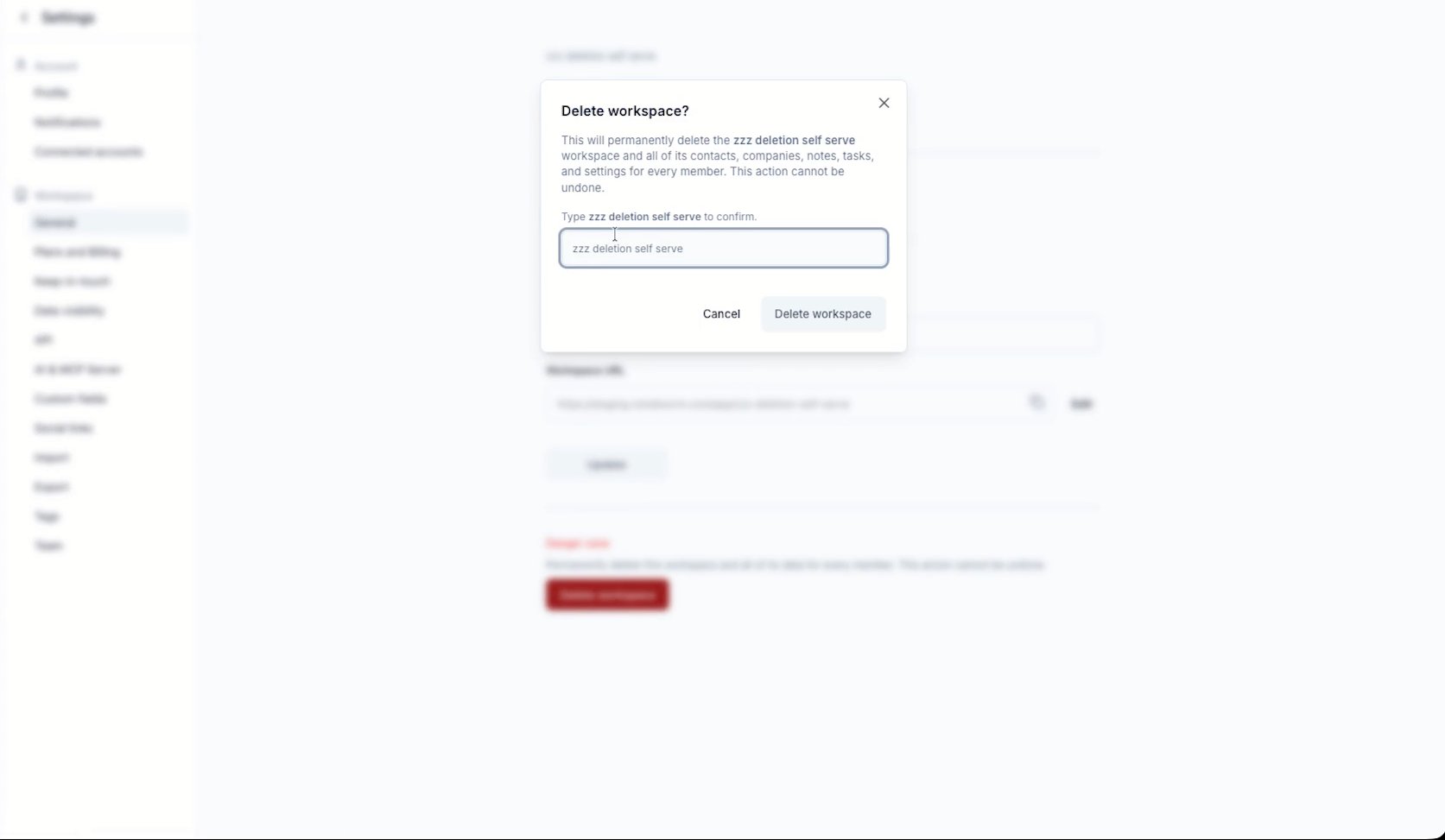
 A confirmation dialog opens listing exactly what will be deleted. To prevent accidental clicks, the **Delete workspace** button stays disabled until you type the workspace name exactly as it appears.
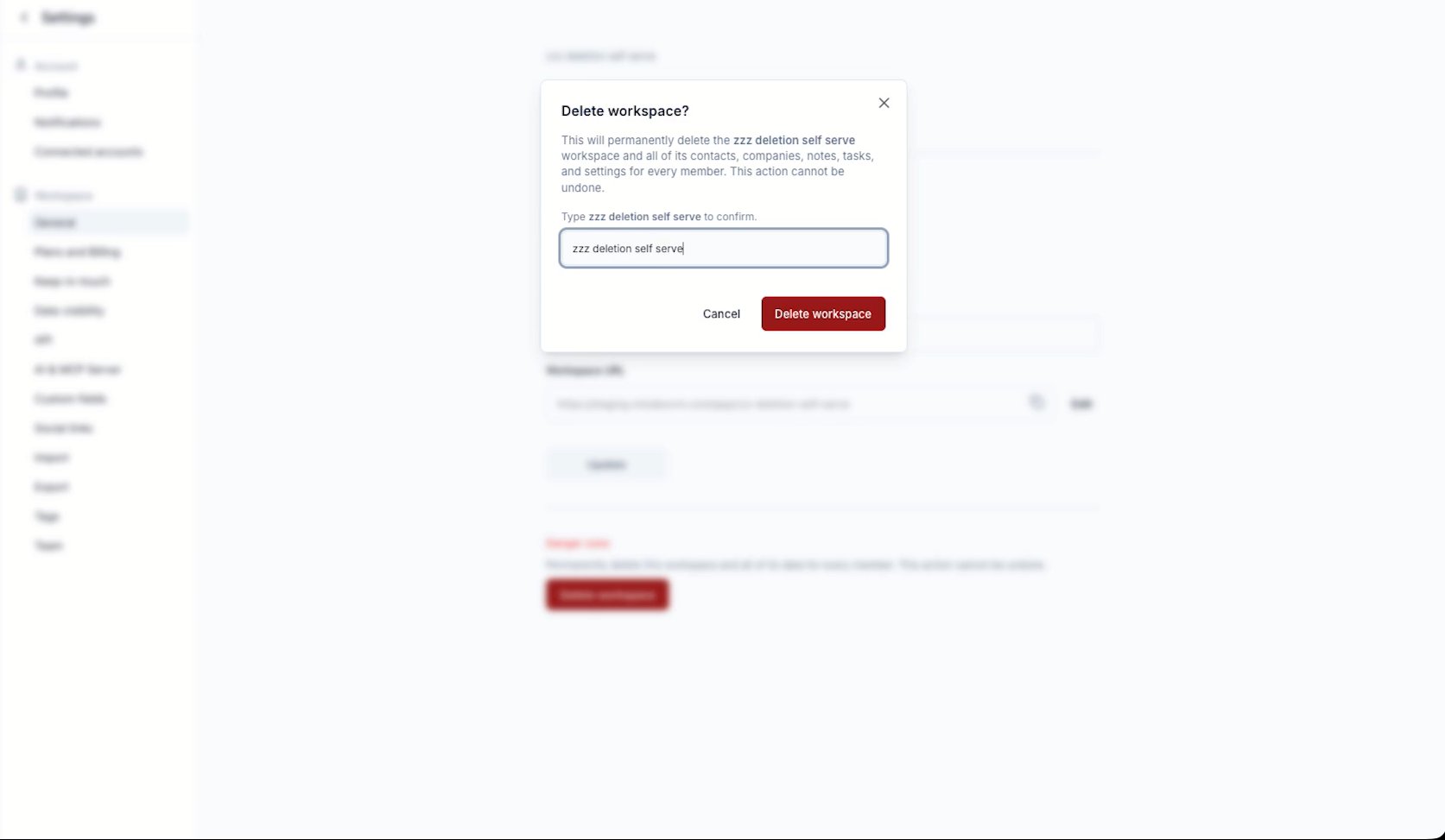
 Once the name matches, the button turns red and becomes clickable.
 Changed your mind? Click **Cancel** or the **X** to close the dialog. Nothing is deleted until you click **Delete workspace**.
Click **Delete workspace**. The button shows a loading state while the workspace is removed, then Rolodex reloads and drops you into another workspace you belong to.
The deleted workspace no longer appears in your workspace switcher.
## What gets deleted
Everything that lived in the workspace, for every member:
* Contacts and companies
* Notes and tasks
* Lists, boards, and tags
* Custom fields and workspace settings
* The workspace URL
Want to step away from a workspace without wiping it for everyone else? Leave the workspace or have an admin remove you from **Settings → Team** instead of deleting it.
Changed your mind? Click **Cancel** or the **X** to close the dialog. Nothing is deleted until you click **Delete workspace**.
Click **Delete workspace**. The button shows a loading state while the workspace is removed, then Rolodex reloads and drops you into another workspace you belong to.
The deleted workspace no longer appears in your workspace switcher.
## What gets deleted
Everything that lived in the workspace, for every member:
* Contacts and companies
* Notes and tasks
* Lists, boards, and tags
* Custom fields and workspace settings
* The workspace URL
Want to step away from a workspace without wiping it for everyone else? Leave the workspace or have an admin remove you from **Settings → Team** instead of deleting it.