

Before you delete
- Only admins can do this. The Danger zone is hidden for members who aren’t workspace admins. If you don’t see it, ask an admin to run the deletion.
- Export anything you want to keep. Head to Settings → Export first and pull down your contacts and companies. Once the workspace is gone, so is the data.
- Billing doesn’t block deletion. An active subscription or trial won’t stop you—you can delete the workspace at any time.
How to delete a workspace
1
Open workspace settings
Click your workspace name at the top of the left sidebar, then select Settings.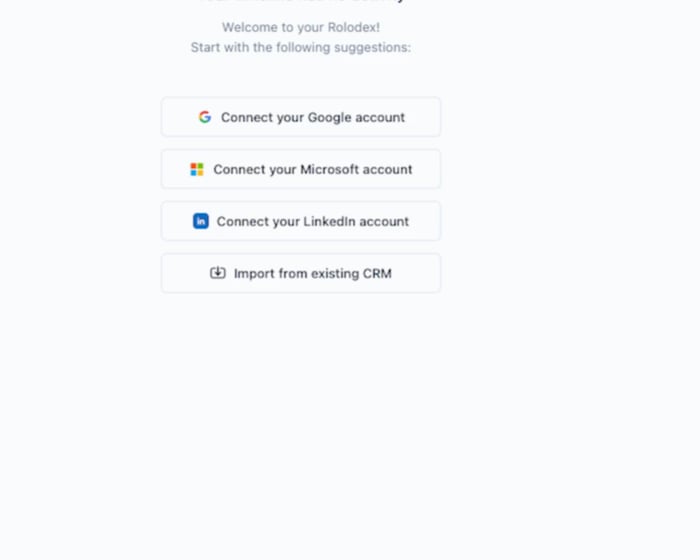
2
Go to "General" under Workspace
Settings opens on your personal Profile page. In the settings sidebar, find the Workspace section and click General.
3
Scroll to the "Danger zone"
At the bottom of the General page, below the workspace name and URL, you’ll find the Danger zone and a red Delete workspace button.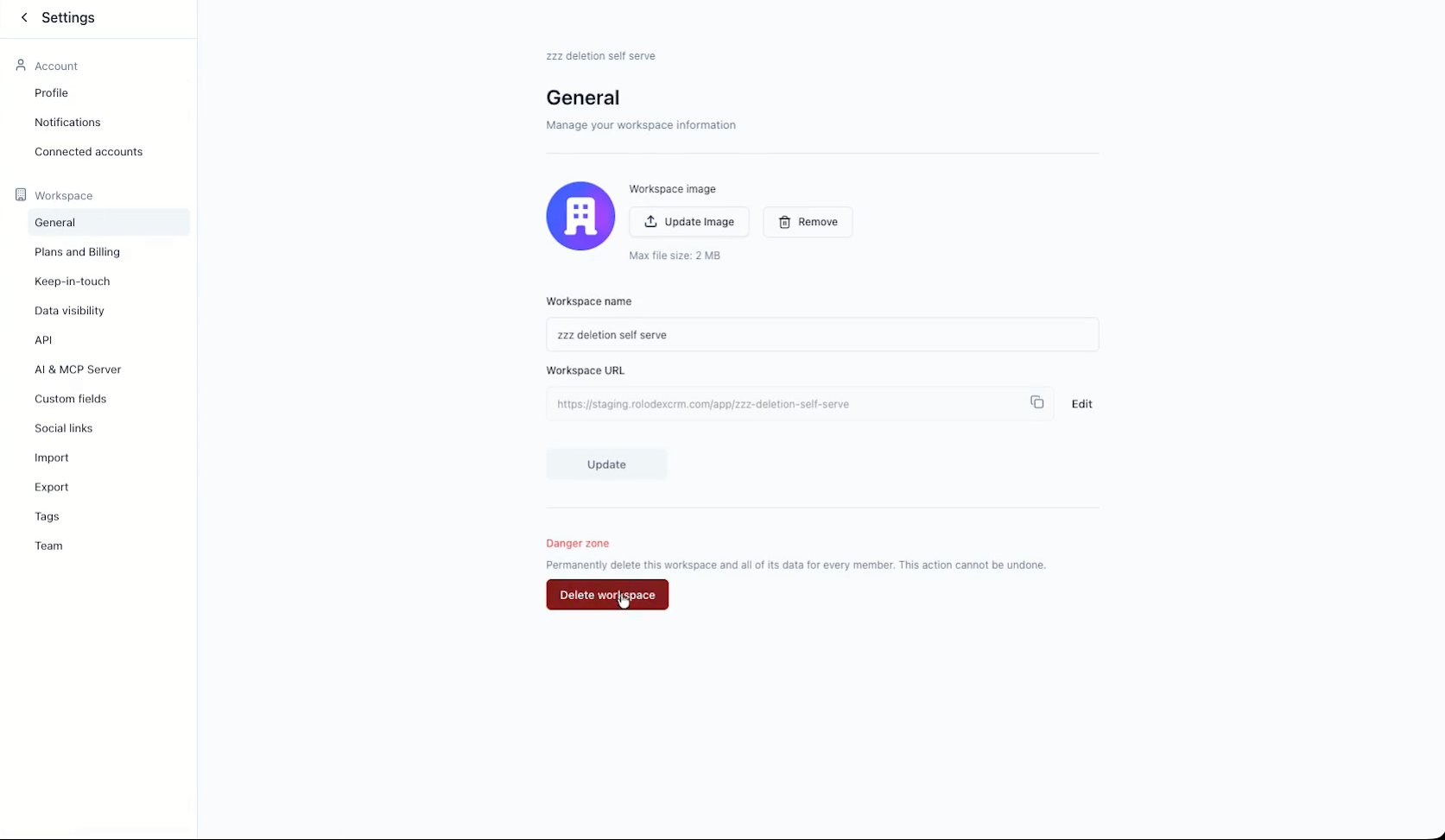
4
Confirm by typing the workspace name
A confirmation dialog opens listing exactly what will be deleted. To prevent accidental clicks, the Delete workspace button stays disabled until you type the workspace name exactly as it appears.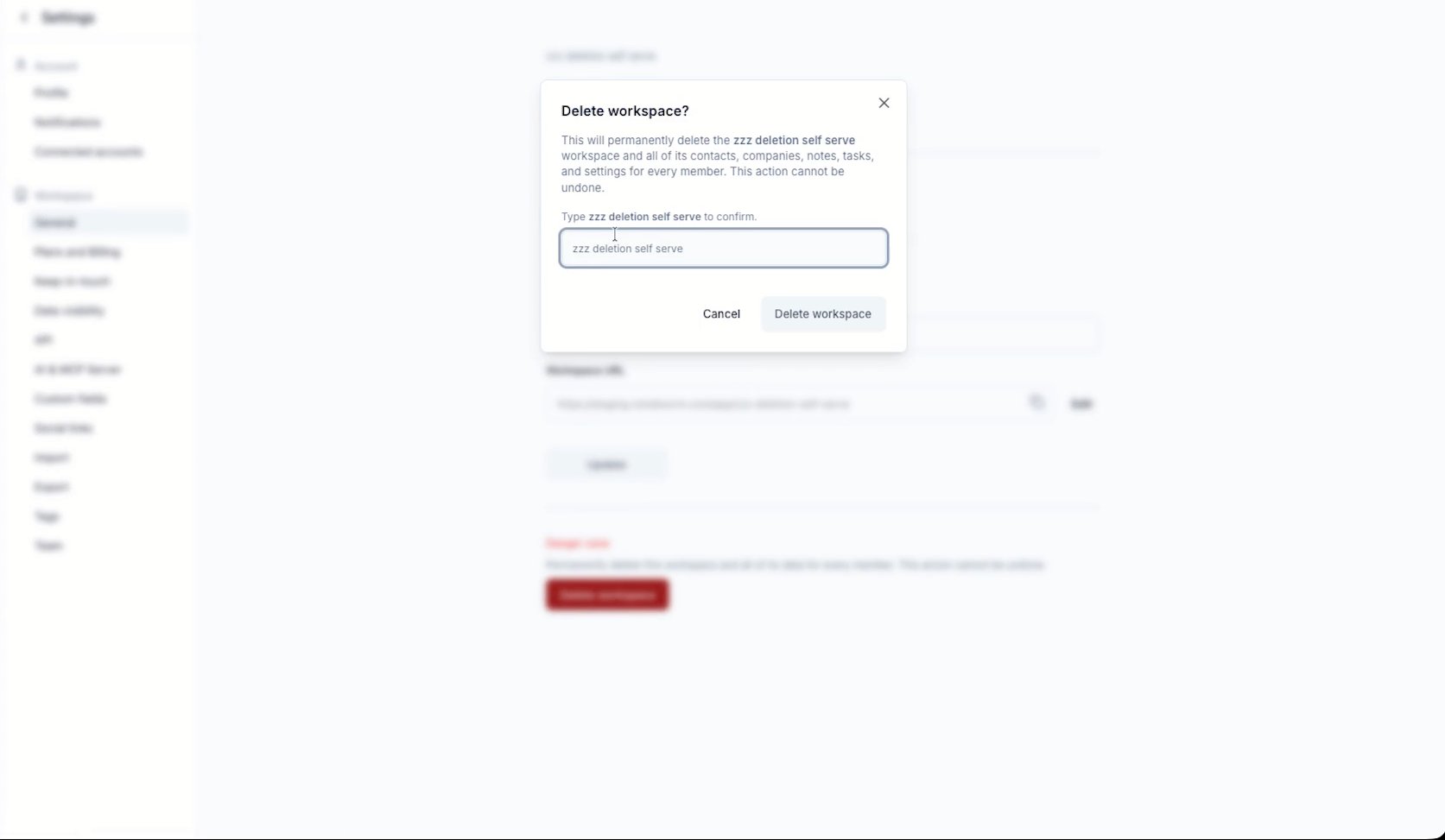
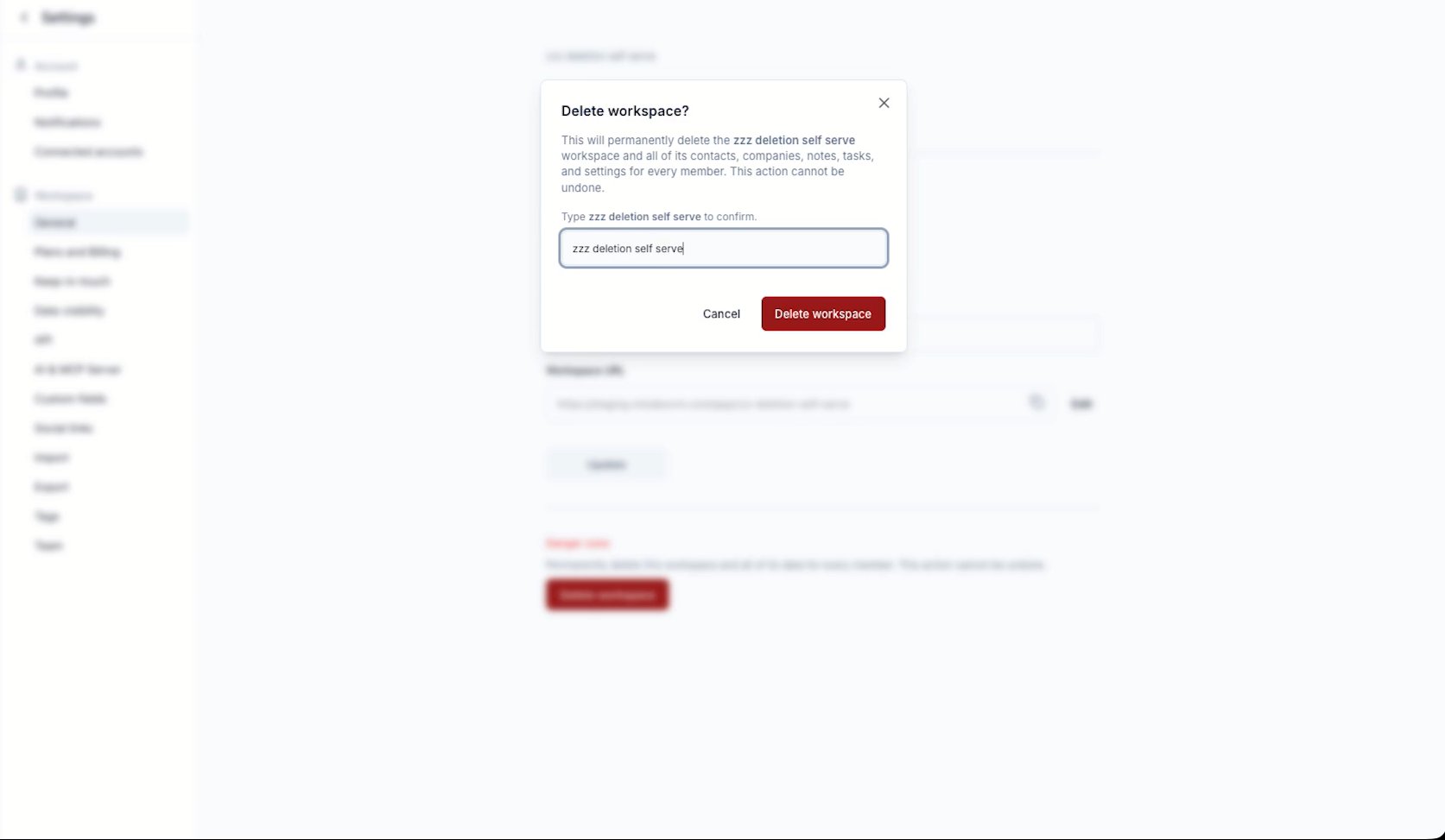
Changed your mind? Click Cancel or the X to close the dialog. Nothing is deleted until you click Delete workspace.
5
Delete
Click Delete workspace. The button shows a loading state while the workspace is removed, then Rolodex reloads and drops you into another workspace you belong to.The deleted workspace no longer appears in your workspace switcher.
What gets deleted
Everything that lived in the workspace, for every member:- Contacts and companies
- Notes and tasks
- Lists, boards, and tags
- Custom fields and workspace settings
- The workspace URL